Product
Setup and cockpit
Choose what to assess, give each element an owner and a deadline, and follow progress in one place.
The cockpit
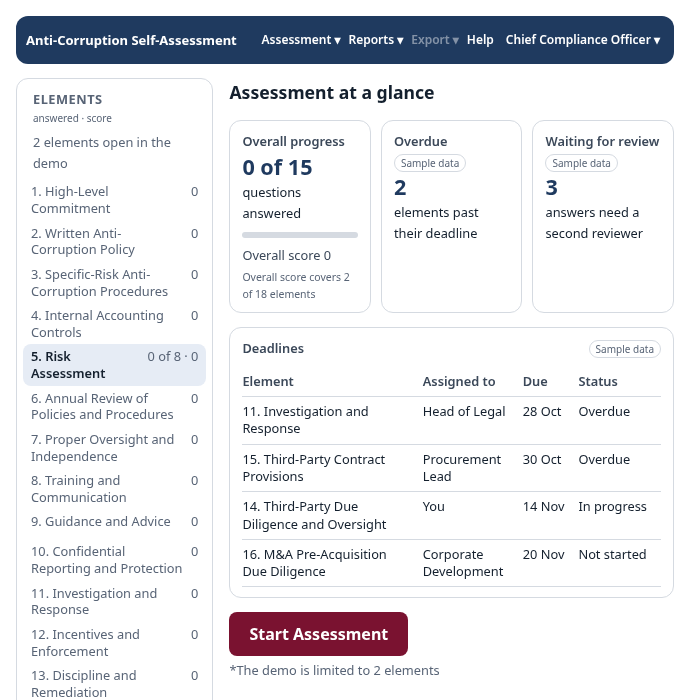
The cockpit is the first screen after you start. It shows how far the assessment has come.
- Overall progress, overdue elements, and answers that wait for a second reviewer.
- A table of deadlines, with owner, due date and status.
- A Start Assessment button. It proceeds only with the elements assigned to you.
Set up assessment
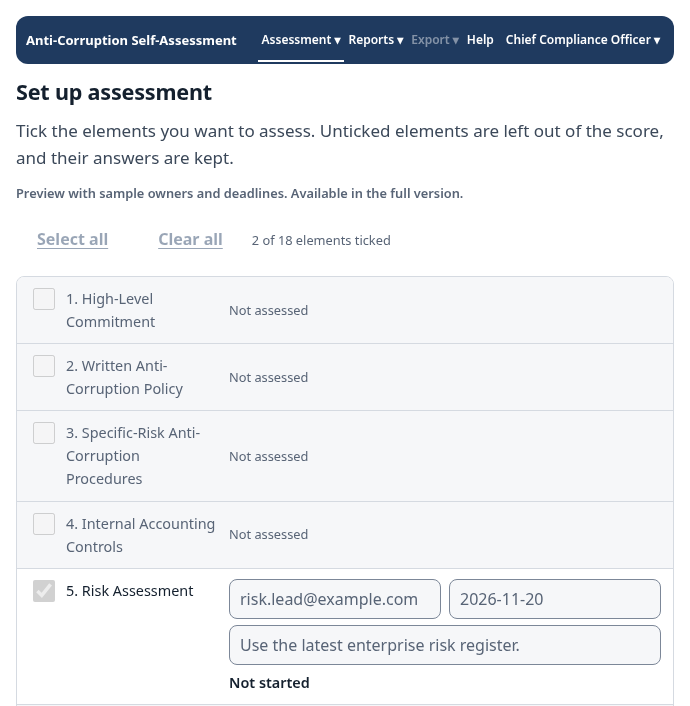
Use this page to decide what is assessed, and by whom.
- Choose the elements. Tick the elements you want to assess. Unticked elements are greyed out. They are left out of the score, and their answers are kept.
- Give each element an owner. Enter the owner’s email and a deadline. Add a short note with instructions if you like.
- Apply to several at once. Set one owner or deadline for all ticked elements.
- Invitations and reminders. One button prepares the invitations. One button prepares reminders for owners who are overdue or have not started. The page shows when the last reminder was prepared.
- Change the scope later. If an element already has answers, the tool asks you before it removes the element.
About emails
Ready-written emails for your invitations and reminders.
The buttons open a ready-written email in your own mail program, with the owner, deadline and instructions filled in. You press Send. Nothing is sent from the page, and nothing goes to AS3.
In the demo, the send buttons are switched off and the page shows sample data.
Included in the licensed version, rolling out now: sending the emails directly from the tool, and views where each assignee sees only their own elements.
Try the demo.
The demo is open only by request. After we approve your request, we send you an access code.